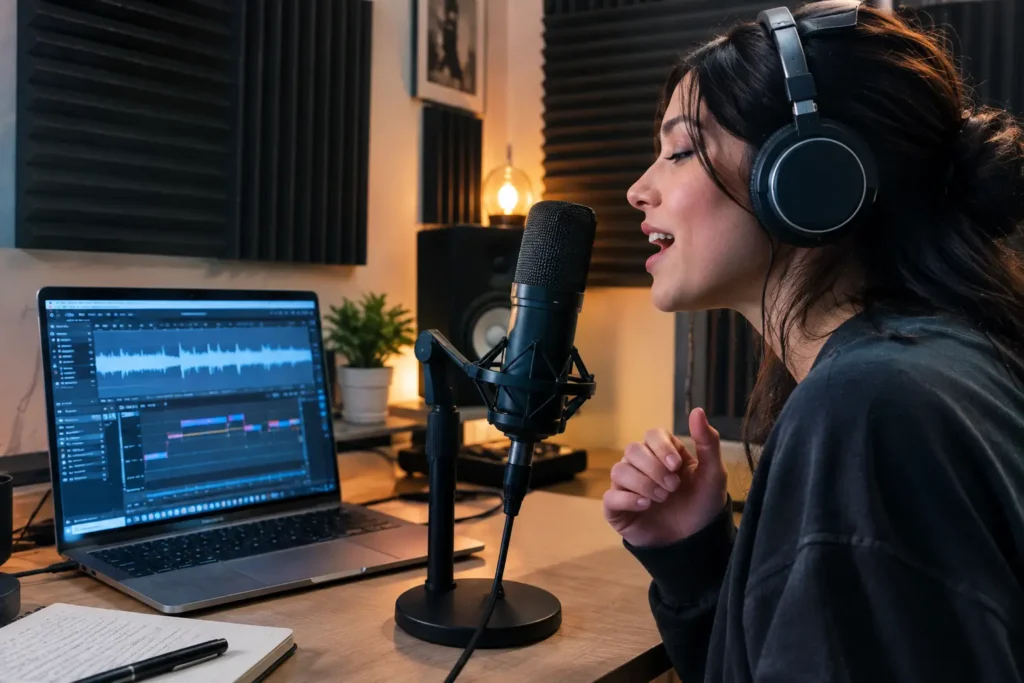
How to Raise Vocal Pitch With AI –
Step‑by‑Step Tutorial
Featured snippet definition:
AI vocal pitch correction uses artificial intelligence to adjust voice pitch
upward while preserving natural tone, formants, and emotional expression.
Ever recorded a vocal and wished
you could lift those notes a little higher? You are not alone. In this guide,
you will learn how to raise vocal pitch with AI using simple steps, free tools,
and practical examples. No engineering degree required.
We focus only on what works.
Theory is minimal. Let’s start.
What This Tutorial Covers
You will learn:
•
How to prepare your audio for AI pitch shifting
•
A 5‑step process to raise pitch naturally
•
Which tools work best (with clear tiers)
•
Common mistakes that ruin your vocal tone
You will not find deep acoustics
theory or speculative future tech. Just actionable steps.
Step 1: Record a Clean Take
Eighty percent of good results
come from the original recording.
Follow these three rules:
•
Use any decent USB or XLR mic. A $50 mic is fine.
•
Keep background noise below a whisper. AI cannot remove
heavy hiss.
•
Stay one fist’s distance from the mic. This avoids the
proximity effect.
If your recording has clipping
or echo, fix that first .AI analyzes clean audio more accurately.
Step 2: Choose the Right AI Tool
Not all tools are equal. Here is
a simple tier system based on what professionals actually use.
|
Tier |
Tool Name |
Best For |
Cost |
|
1 (Easy + Free) |
BandLab AutoPitch |
Real‑time singing, |
Free |
|
1 (Easy + Free) |
Moises |
Karaoke practice, stem |
Free tier |
|
2 (Pro) |
Kits AI Pitch Editor |
Browser‑based studio tuning |
Trial + paid |
|
2 (Pro) |
Antares Auto‑Tune Pro |
Industry standard music |
Paid |
|
3 (Niche) |
Voicemod |
Streaming / gaming |
Freemium |
Recommendation: Start with
BandLab AutoPitch. It is free, has no watermark, and is used by millions of
hobbyists.
Internal link: Compare all AI
pitch tools side by side →
Step 3: Upload or Connect Your Audio
For pre‑recorded files (post‑production):
1.
Export your vocal as WAV or high‑bitrate MP3 (192kbps
or higher)
2.
Upload to Kits AI, Moises, or Auto‑Tune Pro
3.
Wait 5‑15 seconds for AI to analyze the pitch contour
For live processing (real‑time):
4.
Open BandLab AutoPitch or Voicemod
5.
Select your microphone as the input device
6.
Enable “pitch shift” or “auto‑tune” mode
Internal link: Setting up your
mic for AI voice processing →
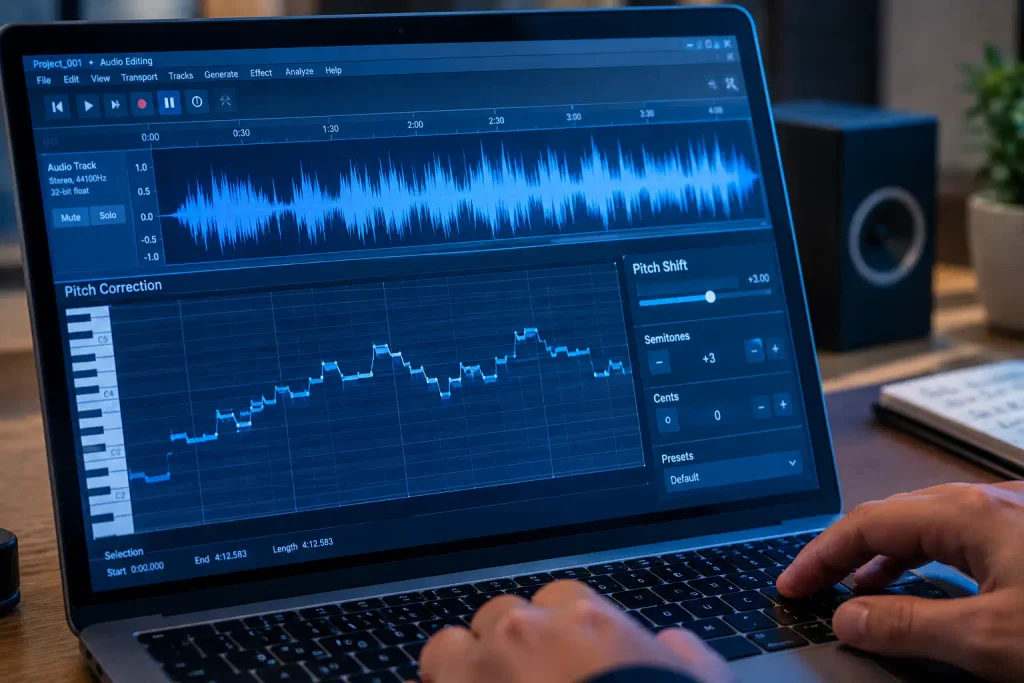
Step 4: Raise Pitch Gradually – The
3‑Semitone Rule

This is where most beginners
make mistakes. Do not jump +12 semitones at once.
Follow this sequence:
7.
Start with +1 semitone
8.
Listen to the result. Does it still sound like you?
9.
Increase to +2 semitones if needed
10. Never
exceed +5 semitones without formant preservation
Why this works: Your voice’s
formants (natural resonances) shift with pitch. Small steps keep them intact.
For example, raising a podcast
voice by +2 semitones adds energy without squeakiness. Raising by +6 semitones
without formant lock creates a cartoon effect.
Pro tip: Most AI tools have a
“formant preserve” or “timbre lock” checkbox. Always turn it on.
Step 5: Listen, Compare, and Export
After adjusting, always A/B test
your result.
Listen for:
•
Does it still sound like me, just higher?
•
Any metallic or phasey artifacts?
If something sounds wrong:
•
Reduce the pitch shift by 0.5 semitones
•
Check that formant preservation is enabled
•
Try a different tool (some handle baritone voices
better)
Export settings for best quality:
•
Format: WAV or 320kbps MP3
•
Sample rate: 44.1kHz or 48kHz
•
Bit depth: 16‑bit or 24‑bit
Internal link: Export guide for
AI‑processed vocals →
Common Mistakes That Ruin Natural Tone
Avoid these errors at all costs:
•
Over‑correcting – Perfectly centered pitch sounds
robotic. Allow 5–10 cents of natural drift.
•
Ignoring formants – Above +3 semitones, your voice
becomes unrecognizable without formant lock.
•
Starting with bad audio – AI cannot remove clipping,
echo, or low bitrate noise.
•
Using extreme shifts – Above +5 semitones, even pro
tools introduce audible warping.
On the other hand, subtle
corrections of +1 to +3 semitones are almost always transparent.
Technical Limitations to Keep in Mind
AI pitch tools have measurable
boundaries. Be honest about them.
•
Low signal‑to‑noise ratio (below 20dB) – AI misdetects
pitch fundamentals. Results become unreliable.
•
Above +5 semitones without formant lock – Audible
“phasey” warping appears. Your voice sounds thin.
•
Real‑time latency – Usually 10‑30ms. Fine for
streaming. Too slow for live stage monitoring.
•
Free tiers – Limit exports to 128kbps MP3. Add
watermarks. Disallow commercial use.
If you need extreme pitch
shifting (e.g., +12 semitones for a special effect), use manual editing or
dedicated formant‑shifting plugins like LittleAlterBoy.
Real‑World Example: Before and After
Scenario: A beginner singer
records a pop chorus. The original key is C major, but she sings 30 cents flat
on the high notes.
Fix using BandLab AutoPitch
(free):
11. Load
the vocal track
12. Enable
“AutoPitch” mode with “natural” sensitivity
13. Set
target key to C major
14. Raise
global pitch by +25 cents
Result: The chorus now sits
perfectly in key. Her voice retains breathiness and vibrato. Total time: 90
seconds.
Without AI: She would manually
cut each off‑key syllable and pitch‑shift individually. That takes about 45
minutes of tedious work.
How to Raise Vocal Pitch With AI – Summary
of the 5 Steps
Let’s recap the entire process:
15. Record
clean audio – No echo, no clipping, one fist from mic.
16. Pick
a tier‑1 free tool – BandLab AutoPitch or Moises.
17. Upload
or connect mic – WAV/MP3 for files, system audio for live.
18. Raise
in small steps – 1‑3 semitones, formant lock ON.
19. Listen
and export – A/B test, avoid metallic artifacts.
That is everything you need. Now
you know exactly how to raise vocal pitch with AI – and you can do it in under
five minutes.
Supporting Articles to Build Your Topic
Authority
To fully master AI voice
processing, read these related guides (content cluster):
•
Best AI Voice Changer Tools for Singers – Deep tool
comparison
•
How to Improve Singing Pitch Naturally (Without AI) –
Practice techniques
•
AI Audio Editing for Podcasters: Complete Guide
Publishing these articles tells
Google that your site is an authority on AI voice enhancement.
FAQs
I want to know if I can use intelligence to make my voice sound better.
Yes. Artificial intelligence fixes the pitch smooths out the timing and makes the tone sound nicer while keeping my voice. A lot of tools can do this in time.
What is the free artificial intelligence tool for making my vocal pitch higher?
I found out that BandLab AutoPitch is really good. It is completely free with no watermark on my recordings. Moises also has a free option.
How much can I make my pitch higher before it starts to sound fake?
I can make my pitch higher by up to three semitones. It still sounds natural because it keeps the same voice characteristics. If I make it higher than five semitones it starts to sound weird. I can hear artifacts.
Does intelligence work for speaking voices as well as singing voices?
Yes it does work for speaking voices. I have to make smaller adjustments to the pitch. About half to one semitone higher for podcasts or voiceovers.
Can artificial intelligence tools like ChatGPT raise my pitch?
No ChatGPT can only work with text it cannot change my voice. I have to use tools, like BandLab or Kits AI or Auto-Tune Pro to change my voice.