
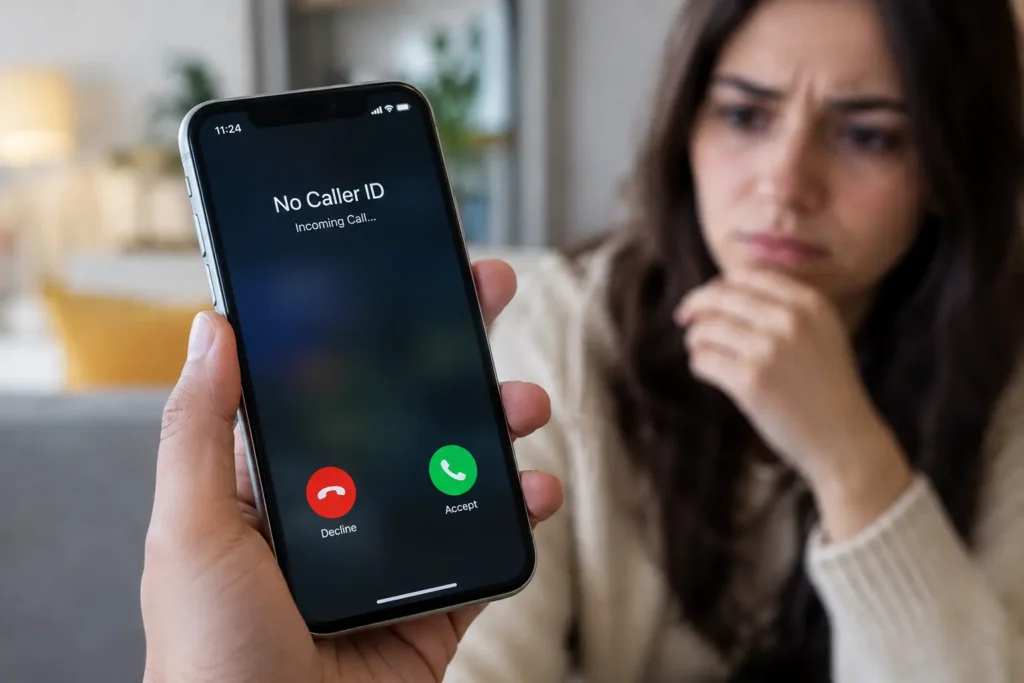
Getting a call from No Caller ID
is really annoying.. You have no idea if it\’s spam, a scammer, or someone
important hiding behind a blocked number. If you\’ve been looking for a way to block
No Caller ID on iPhone, you\’re in the right place. This guide walks you
through the steps, tools, and settings
that actually reduce these calls, without any confusing technical terms.
By the end of this guide, you\’ll
know how to silence unknown callers, set up smarter call filters, and finally
get some peace back on your iPhone.
What Does No Caller ID Mean on iPhone?
No Caller ID simply means the
person calling you has hidden their number before dialing.. Your iPhone isn\’t
malfunctioning. The caller, or their carrier, made that choice on purpose.
That\’s exactly why many people
look for ways to block No Caller ID on iPhone. These calls can be
harmless. They\’re often spam too, which makes them frustrating to deal with.
Difference Between No Caller ID, Unknown Caller, and Private Number
These three terms sound similar.
They\’re not always the same thing:
•
No Caller ID _the caller intentionally hides their number
•
Unknown Caller _ your iPhone has no information
to display, often due to a network issue
•
Private Number _ usually just another label
carriers use for a hidden number
Either way, the result is the
same. You\’re left staring at a screen with no clue who\’s calling.
Why People Hide Their Caller ID
Some people hide their caller ID
for good reasons. Doctors\’ offices, businesses, and even some workplaces hide
their numbers for privacy . Scammers, however, use the same trick to stay
untraceable, which is why it\’s hard to tell a legit call from a spam one just
by looking at your screen.
Can You Block No Caller ID Calls on iPhone?
Here\’s the truth: Apple doesn\’t
offer one switch that blocks every No Caller ID call. But with a few built-in
tools working together, you can get very close to that result.
What Apple Allows
Apple gives you features like
Silence Unknown Callers and Focus Mode. These don\’t technically block the call.
Instead, they silence it and send it to voicemail, which works just as well for
most people.
Limitations of Blocking Hidden Numbers
There are limitations to
blocking these numbers. Since hidden numbers don\’t send any caller information,
your iPhone can\’t add them to a block list. Once you understand this
limitation, though, the workarounds below make a lot more sense.
Method 1: Silence Unknown Callers
If you only try one method, make
it this one. It\’s the fastest way to block unknown callers on iPhone,
and it\’s already built into your settings.
Step-by-Step Instructions
1.
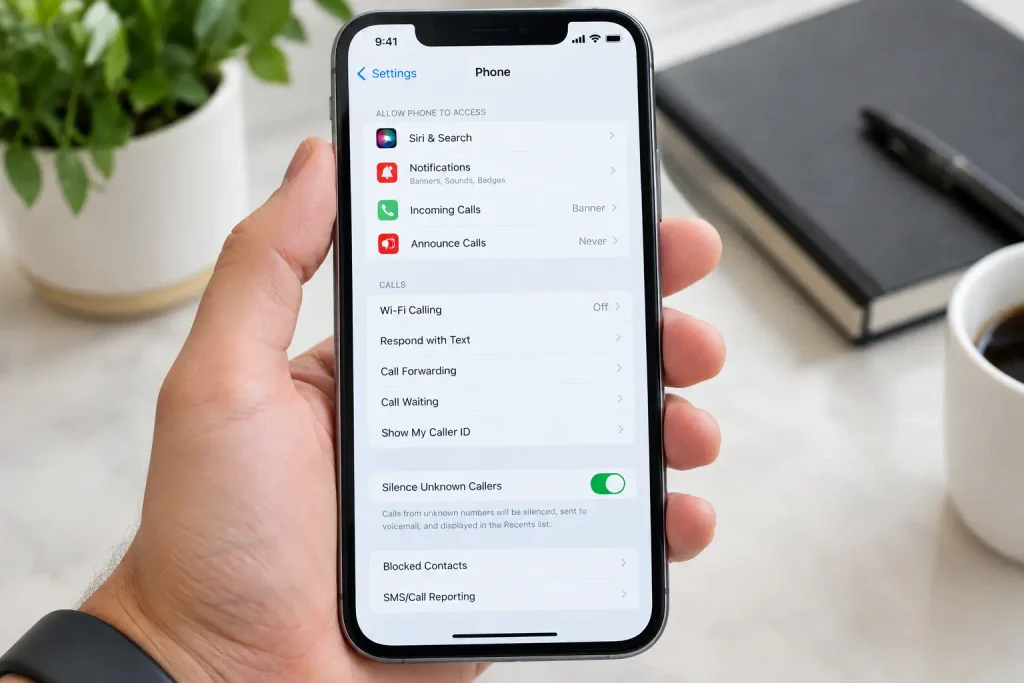
Open the Settings app on your iPhone
2.
Tap-Phone
3.
Tap-ilence-Unknown-Callers
4.
Turn the toggle on
Once enabled, any call from a
number not saved in your contacts — including every No Caller ID call — goes
straight to voicemail without ringing. You\’ll still see it under Recent Calls,
so nothing gets lost. It simply stops interrupting you.
Pros and Cons
|
Pros |
Cons |
|
Free and built into iOS |
May silence legitimate calls too |
|
Takes seconds to set up |
No option to whitelist specific numbers |
|
Works immediately |
Silences the call rather than blocking it |
Because of this trade-off, this
method works best if most of your calls already come from saved contacts.
Method 2: Use Focus Mode to Reduce Unwanted Calls
Focus Mode is another effective
way to manage an iPhone No Caller ID block situation. It\’s mainly known
for muting notifications, but it filters calls too.
Set Up Focus Filters
5.
Open Settings and tap Focus
6.
Choose an existing Focus, like Do Not Disturb, or
create a new one
7.
Tap Add Filter, then select Calls
Allow Calls from Contacts Only
You can allow calls only from
your contacts or favorites. Everyone else, including hidden numbers, gets
silenced automatically while that Focus is active. You can even schedule it to
turn on during work hours or overnight.
Method 3: Contact Your Mobile Carrier
Sometimes the best fix isn\’t on
your iPhone at all. It\’s with your carrier.
Carrier Call-Blocking Services
Carriers like AT & T,
Verizon, and T-Mobile offer their own spam-blocking services, often catching
suspicious calls before they even reach your iPhone.
When to Contact Customer Support
If hidden-number calls continue
after trying the methods above, it\’s worth calling your carrier directly. They
can usually add an extra layer of protection or explain carrier-specific
settings you might be missing.
Method 4: Use a Spam Call Blocking App
For extra protection, a
dedicated app is a great option if you\’re still figuring out how to stop No
Caller ID calls.
Best Apps for iPhone
Popular choices include
Robokiller, Hiya, and Truecaller . These apps use large spam-number databases
to flag or silence suspicious calls, including many that hide behind No Caller
ID.
How to Enable Call Blocking Apps
8.
Download your chosen app from the App Store
9.
Go to Settings > Phone > Call Blocking &
Identification
10.
Toggle the app on
After that, the app works
quietly in the background, filtering calls without any extra effort from you.

What to Do If No Caller ID Calls Continue
Even with all these tools, a few
calls might still get through. If that happens, here\’s what to do next.
Report Spam Calls
You can report suspicious
numbers directly to the FCC, which tracks robocall and scam trends.. Reporting
helps flag patterns that protect other users too.
Change Your Privacy Settings
It\’s also worth checking where
your number is publicly listed. Removing it from unnecessary online directories
can meaningfully cut down on how often spammers find you in the first place.
Tips to Avoid Spam and Anonymous Calls
A few small habits go a long way
toward a quieter iPhone:
•
Don\’t answer unknown numbers — if it\’s
important, they\’ll leave a voicemail
•
Block suspicious numbers -as soon as they appear
•
Keep iOS updated, -since Apple regularly
improves call-filtering tools
•
Protect your phone number online -by avoiding
unnecessary sign-ups
Final Thoughts
Blocking No Caller ID calls on iPhone really comes down to layering a few simple tools: Silence Unknown Callers, Focus Mode, carrier support, and a spam_blocking app if needed. None of these are perfect alone, but together, they create a much quieter, safer calling experience.
The easiest place to start is Silence Unknown Callers. It takes seconds and immediately cuts down on interruptions. From there, keep your iPhone updated, since Apple continues to improve its privacy and security features with every release..
For official guidance, visit Apple Support or check the FCC\’s guide on stopping unwanted robocalls.
If you\’re also weighing your options for a new phone, take a look at our Samsung vs iPhone: The Ultimate Comparison or iPhone or Android: Which One Should You Choose?
Frequently Asked Questions (FAQs)
1. I want to know if I can completely
block No Caller ID calls on my iPhone?
The answer is not entirely
because there is no way to add a number to a block list.
There is something that
gets me really close to a full block, which is Silence Unknown Callers.
2. I am wondering if Silence Unknown
Callers will block my contacts?
No it will not block my
contacts.
It only blocks calls from
numbers that are not already saved in my Contacts app so I will still get calls
from my friends and family.
3. I think No Caller ID calls are always
spam. That is not true.?
Some offices and
businesses also hide their numbers so it is an idea to check my voicemail
before I assume it is spam.
4. Which iPhone models can use these
features?
Any iPhone that is running
a recent version of iOS can use Silence Unknown Callers and Focus Mode it does
not matter which model I have.
5. Do I need to get a third-party app to
block No Caller ID calls?
Not necessarily, because
Apples built-in tools can handle situations well.
If I get a lot of spam
calls a third-party app can give me extra protection.
6. How can I find out who is calling
when it says No Caller ID on my iPhone?
There is no built-in way
to reveal a number on my iPhone.
Some third-party apps say
they can identify blocked numbers. The results are not always reliable.